How to scan a multipage document into one readable PDF with your phone
· Editorial team newsfromportland7.com
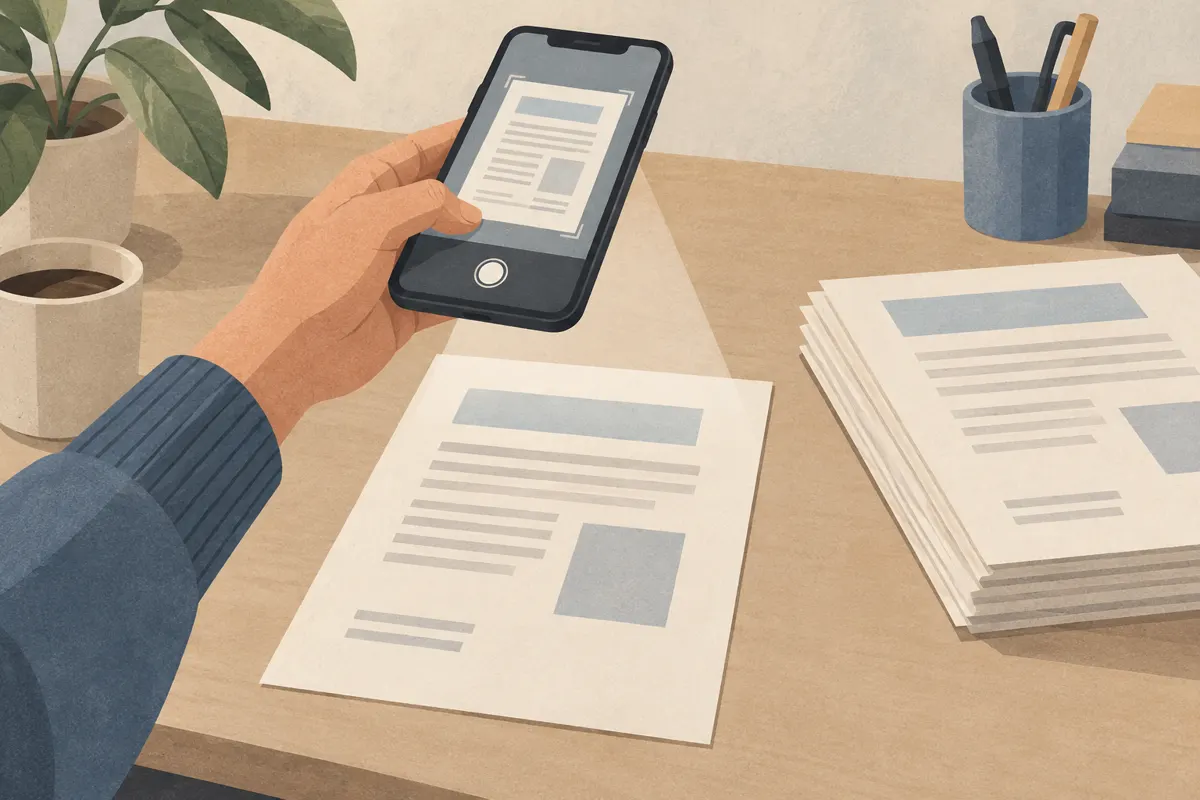
To scan multiple pages into one PDF on your phone, open a document-scanning feature, capture every page in the same scanning session, then save or export the complete document as a PDF. Before sharing it, check that the text is readable, the edges are complete and the pages are in the right order. Button names vary by phone and app, but the workflow below gives you a practical sequence to follow.
Set up the pages and lighting
Put the document on a flat surface with a plain background that contrasts with the paper. Arrange the pages in reading order before starting. For double-sided documents, include each relevant back page immediately after its front so you can follow the sequence as you scan.
Use even light across the whole sheet. If your hand or phone casts a shadow over the text, change your position or move the light. For glossy paper, adjust the angle of the light until bright reflections disappear. Flatten folded corners gently, and keep fingers away from text and page edges.
- Wipe the camera lens before capturing the first page.
- Keep the full sheet visible, with a little background around all four edges.
- Move unrelated papers out of the frame so the intended page is easy to identify.
Capture every page in the same session
Look for a document-scanning command in an app you already use for files, notes or documents. Choose the scanning feature if one is available. Check that it lets you add pages and save or export the result as a PDF before working through a long document.
- Start a new scan and position the phone above the first sheet, keeping it as parallel to the paper as practical.
- Wait until the text looks sharp and the whole page is visible. Capture it manually or let automatic capture work if your app offers that option.
- Inspect the preview. Retake the page immediately if letters are blurred, glare covers text or an edge is missing.
- Use the option to add another page, or continue capturing within the same session. Replace the sheet and repeat.
- Finish the session only after you have captured every required page, then choose the document’s save or export option.
If capturing a page takes you straight to a saved file, look for a multipage setting or an add-page option before continuing. Saving each sheet separately creates extra work when your goal is one document.
Crop carefully and check small text
Review the crop on each page. If adjustable corner markers are available, place them at the actual corners of the sheet. Remove unnecessary background while preserving page numbers, signatures, stamps and notes near the margins. A tidy crop is useful only when it keeps all the document’s content.
Zoom in on the smallest print rather than judging readability from the full-page thumbnail. Check numbers, punctuation and faint handwriting. If they are unclear, retake the page with steadier positioning or better light; cropping cannot fix a blurred capture.
If the scanner offers color or contrast settings, compare the preview before accepting a change. Keep color when colored marks carry meaning. Avoid a setting that makes pale text, pencil notes or shaded table cells disappear.
Put the pages in reading order
Open the page overview before saving, if your app provides one. Compare the thumbnails with the paper stack, then use available controls to rotate sideways pages, reorder misplaced sheets and delete accidental duplicates. Epson’s PDF-scanning instructions describe this same capture, edit and save sequence for its scanner software.
- Match the captured page count to the number of sides you intended to include.
- Check that numbered pages follow their printed sequence.
- Confirm that attachments and unnumbered pages appear where the reader needs them.
- Remove blank captures only after checking that they contain no relevant marks.
Name, save and reopen the PDF
Select PDF when choosing the output format, and save all captured pages together. Suggested naming pattern: document-type_subject_date.pdf. For example, application_reference-copy_2026-09-26.pdf is an editorial proposal for a descriptive filename; use a date relevant to your own document.
Save to a location you can find again, then open the saved PDF itself. Scroll through every page to confirm readability, orientation and order. If you reduce the file size to meet an upload limit, reopen the reduced version and check the smallest text again. When sharing, select the finished PDF and confirm that you are attaching the complete document.